 I Hate Tabs

Search
Find that tab from three weeks ago.
Type a word. The list then shows only the sessions with that word in a title or an address.
A Chrome extension for people with too many tabs
One click saves all your tabs to one list, and closes them. Your computer gets its memory back. (You will probably never read those tabs. That is OK.)
How it works
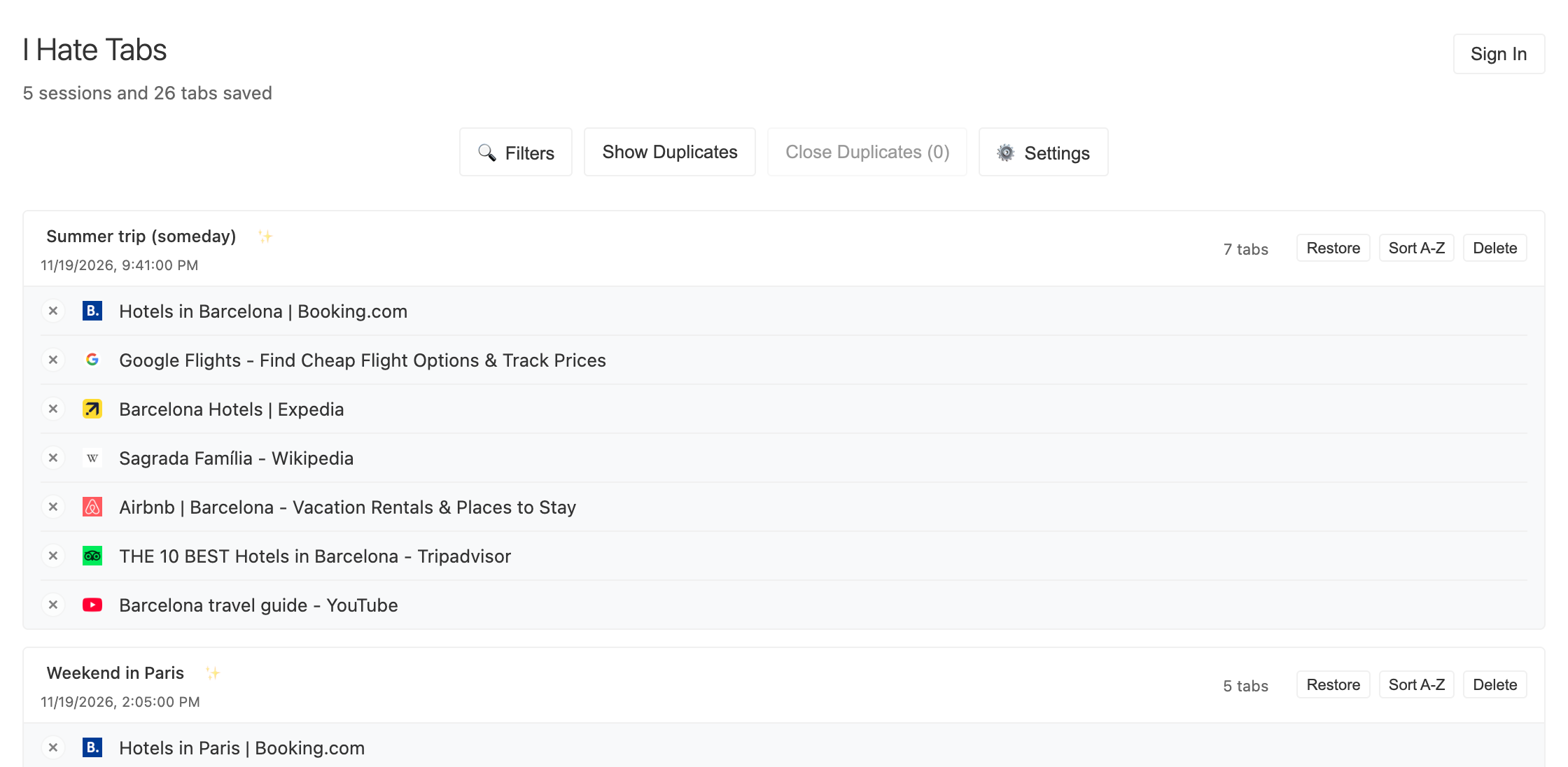
Click the I Hate Tabs button. All tabs in the window go into one saved group (a session), and they close.
Now only one tab is open: your list. Your computer has its memory back.
Click a tab to open it again. Or click Restore to open the whole session.
Features
Search
Type a word. The list then shows only the sessions with that word in a title or an address.
Duplicates
Show Duplicates marks the extra copies. Close Duplicates removes them, in one session or in all sessions.
Optional sync
Sign in with the same account on each computer, and your sessions appear on all of them.
Sync is off until you sign in.
Drag and drop
Drag a tab from one session to another. You can also rename sessions, and sort their tabs from A to Z.
It names each session from its tabs, like Shopping or News. This runs on your computer.
Right-click any page and choose Save all tabs. The toolbar button shows how many sessions you have.
Turn it on, and a tab leaves the list when you open it.
It follows the theme of your system, or you choose. Show page titles or full addresses.
Save all your sessions to a JSON file, and import them again on any computer.
Big lists load a few sessions at a time, so the page stays fast.
Privacy
This is where your tabs go. Short version: they stay in your browser.
Your saved tabs stay here: their addresses, titles, icons, and your sessions.
Never: Advertisers and data sellers
There are no ads, and we do not sell your tabs to anyone.
Never: AI services
Smart session names are made on your computer. Your tabs do not go to any AI service.
Only if you sign in: Your account (Firebase, by Google)
A copy of your sessions, for sync between your computers. Only your account can read it, and you can delete it.
Chrome shows these permissions before you install.
The next version adds two more: unlimitedStorage, so that your list can be bigger than Chrome’s 10 MB limit, and alarms, so that sync can run every 15 minutes.
FAQ
We answer them anyway.
Yes. There is no trial, no ads, and no paid version.
No. You can save, search, and restore tabs without an account. You need an account only for sync between your computers.
In your browser, in Chrome’s storage for extensions. If you turn on sync, a copy also goes to your account in Google’s Firebase service. Only your account can read it.
Chrome shows this warning for the tabs permission. The extension needs this permission to read the address and title of the tabs that you save. It reads them only when you save. It does not look at your history.
Yes. Turn on sync and sign in on both computers. Or save a backup file (Settings, then Export JSON), and open it on the new computer (Settings, then Import JSON).
Chrome. Other browsers that are based on Chromium can install it from the Chrome Web Store, but we do not test them. There is no Firefox version yet.
Chrome deletes the data of the extension. Before you uninstall, save a backup (Settings, then Export JSON), or keep sync on.
Because “I hate tabs” is what you said to your screen just before you looked for a tab manager.
Free, with no ads. No account needed.
Questions, ideas, or problems? Tell us on GitHub.